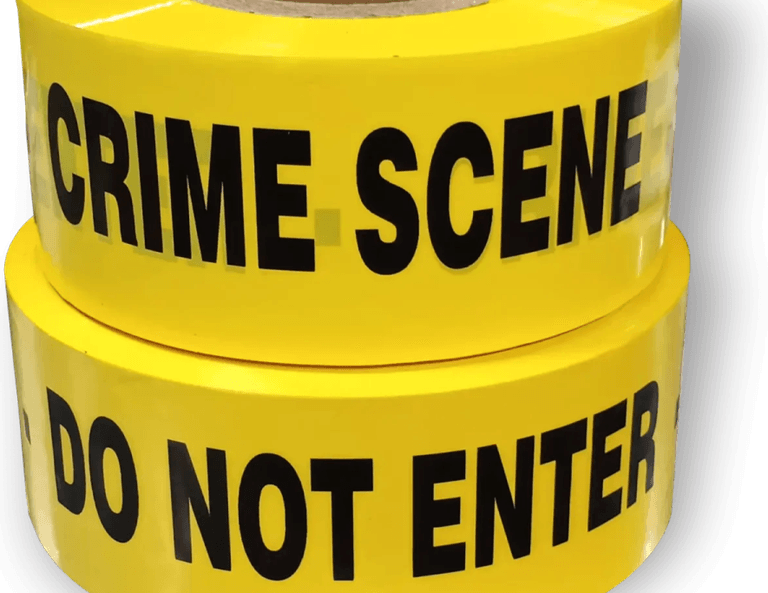
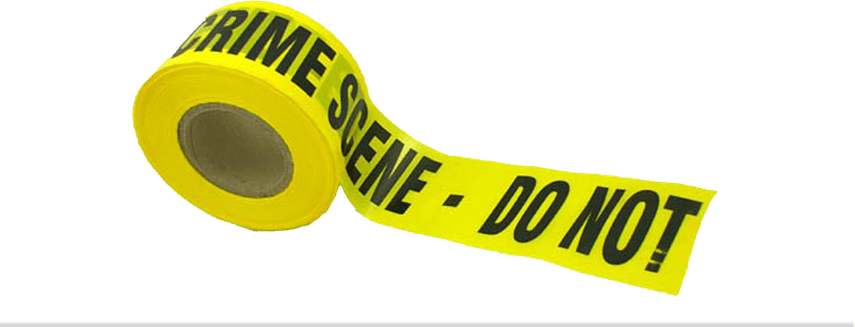
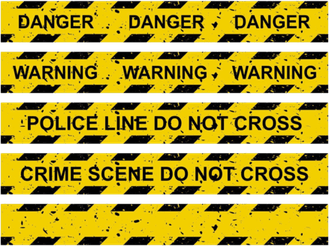
Crime Scene Tape Transparent PNG
Crime Scene Tape photorealistic PNG cutout
Crime Scene Tape Crime Scene TapeComments
Using the Crime Scene Tape transparent PNG in Photoshop is easy:
- Download the PNG file from our site
- Open Photoshop and create or open your project
- Go to File > Place Embedded and select the downloaded image
- Resize and position as needed
- Hit Enter to place the image in your design
Thats it! Your transparent PNG is now part of your Photoshop project.
To add Crime Scene Tape to your Figma design:
- Download the transparent PNG from our website
- Open your Figma project
- Drag and drop the image directly into the canvas
- Use Figma tools to resize, position, or adjust opacity
Your PNG is now part of your layout, ready to be exported or shared.
Follow these steps to use Crime Scene Tape in Canva:
- Download the transparent PNG to your device
- Open Canva and start or open an existing design
- Click Uploads in the sidebar and upload the image
- Drag the PNG onto your canvas and position as needed
You now have a clean, transparent image in your Canva design.
To add the Crime Scene Tape PNG to your PowerPoint presentation:
- Download the transparent PNG from our website
- Open PowerPoint and navigate to the desired slide
- Click Insert > Pictures > This Device
- Select the image you downloaded
- Resize or move it to fit your slide layout
You are done! The PNG will appear clean without any background, perfect for presentations.
Use the Crime Scene Tape image in Google Slides with these steps:
- Download the transparent PNG from our website
- Open Google Slides and select a slide
- Click Insert > Image > Upload from Computer
- Choose the image and insert it into your slide
- Drag and resize as needed
Your slide now features a high-quality transparent image with no editing required.
Add Crime Scene Tape to your site using platforms like Wix, WordPress, or Webflow:
- Download the PNG image from our site
- Log in to your website builder
- Go to the page or section where you want to place the image
- Click Add Image or use the media manager
- Upload the image and insert it into your content
- Set width, height, alt text, and alignment as needed
That’s it! You have successfully added a transparent PNG to your website for a cleaner, more professional look.

- Category: Crime Scene Tape
- Downloads: 0
- Filetype: image/png
- File Size: 30.084 KB
- Dimensions: 600x113
- Aspect Ratio: 600:113
- Added: July 01, 2025
- ID: 07296-crime-scene-tape
More Crime Scene Tape PNGs